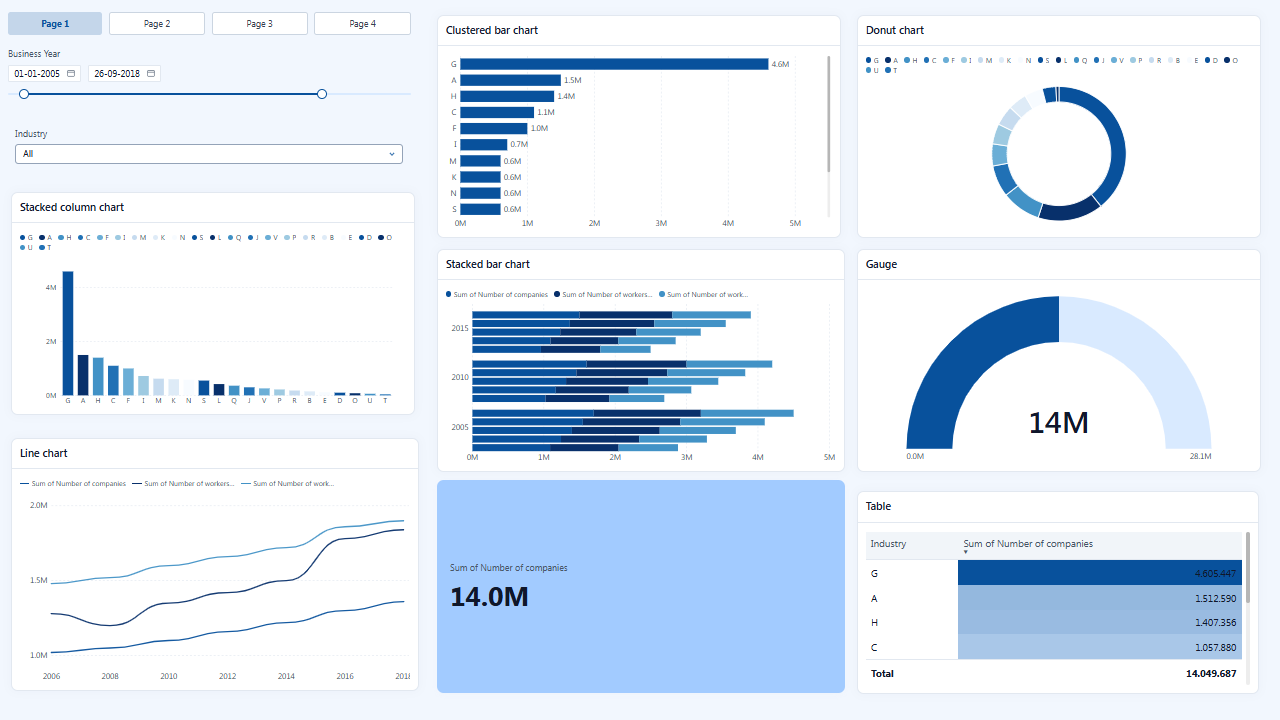
Blues
SequentialClassic ColorBrewer blues for heatmaps.
Source: ColorBrewer · Blues 9 (Apache 2.0)
View themeYOUR NEXT REPORT STARTS HERE
 Power BI.
Your data deserves great design. Find your palette among 50 themes and bring it to your report with a JSON file.
Free. No signup or credit card required.
Choose. Preview. Make it yours.
COLOR TELLS A STORY
These are six of the 50 available themes. Choose one to view in the library and download. You can also search by name and filter by type.
Classic ColorBrewer blues for heatmaps.
Source: ColorBrewer · Blues 9 (Apache 2.0)
View themeA green scale for heatmaps and ordered values.
Source: Tailwind CSS v4 · green (MIT)
View themeAn amber scale to highlight high values without using red.
Source: Tailwind CSS v4 · amber (MIT)
View themeUnderstated, distinct colors for report categories.
Source: ColorBrewer · Dark2 8 (Apache 2.0)
View themeTen balanced category colors for dense dashboards.
Source: Observable 10 · d3-scale-chromatic (ISC)
View themeFrom red through yellow to purple, for data with a midpoint.
Source: ColorBrewer · Spectral 11 (Apache 2.0)
View themeSequential: for ordered data, such as intensity or volume. Categorical: to distinguish groups, such as products or regions. Diverging: for values on either side of a reference, such as positive or negative changes.
Choose based on your data and check each chart for readability. A palette alone does not guarantee accessibility.
FROM COLOR TO YOUR REPORT
How to import a JSON theme into Power BI Desktop, without writing code.
Open the UxBIa library and select a theme. The preview updates so you can compare colors across different charts.
Click Export JSON. Library theme downloads are free and do not require signing in.
In Power BI Desktop, open View → Themes → Browse for themes and select the JSON file. Check the result in your visuals.
Visuals with manually configured colors may keep them. See the Microsoft themes guide to learn how themes are applied.
CHOOSE HOW TO START
Style your report with a ready-made palette.
Create a visual identity from your brand colors.
Exporting menus also requires a license. See what each plan includes.
BEFORE YOU START
Yes. You can explore, preview and export library themes as JSON without paying or creating an account. Creating a theme from your logo is a separate feature: exporting and saving it requires an active UxBIa license.
You download a JSON theme file to apply colors and styles to a report. It does not include data, measures or the preview's chart layout. The preview uses sample data to help you compare palettes.
Start with your data: a categorical palette distinguishes groups, a sequential palette represents order, and a diverging palette distinguishes either side of a reference. In the library, you can filter themes by type and check their colors and sources.
Colors you set manually in Power BI may take precedence over the theme. Check those visuals' formatting and default settings before changing your report. Find more details in the Microsoft documentation.
Yes. In Create a theme from my logo you can upload it and try the result. To export the JSON theme and save it in My themes, you need an active Lite, Edge or Full license.
BRING COLOR TO YOUR DATA